Account Management
The Workbench and MCP server support built-in authentication via two methods:
- User accounts provide interactive password authentication for users. When a user authenticates successfully, the server assigns a session token. The token allows the user to remain connected until the session ends.
- Service accounts allow automated, programmatic access to the API via direct HTTP/HTTPS connections with authentication managed by an API token. A service account cannot log in with a password. A service account can be a superuser or a member of a group with role-based access privileges managed like a login user, but must use an API token for authentication. The server rejects password-based authentication for service accounts.
Authentication data is stored in a SQLite database (auth.db) within the
data directory. By default, the database resides at ./data/auth.db
relative to the server binary.
The following table describes the database tables used to store account, permission, and authentication details:
| Table | Description |
|---|---|
users |
Stores usernames, bcrypt password hashes, service account flags, and superuser status. |
tokens |
Stores API token hashes, expiry dates, and owner references for all token types. |
groups |
Stores named groups for organizing users and assigning permissions. |
group_members |
Tracks user and nested group memberships within each group. |
token_scope |
Restricts tokens to specific connections, MCP privileges, and admin permissions. |
Adding a User or Service Account
A User account authenticates with a username and password to receive a 24-hour session token. A Service account provides programmatic access authenticated via an API token; it is intended for use by computer programs and client applications.
You can add either account type with the Workbench's graphical interface, or at the command line.
To use the Workbench GUI to add an account, authenticate with the Workbench
console as an administrative user, and select the Settings icon in the
upper-right corner of the Workbench console. Select Users from the left
navigation pane, and then select the + Create User icon in the upper-right
corner of the Users page.
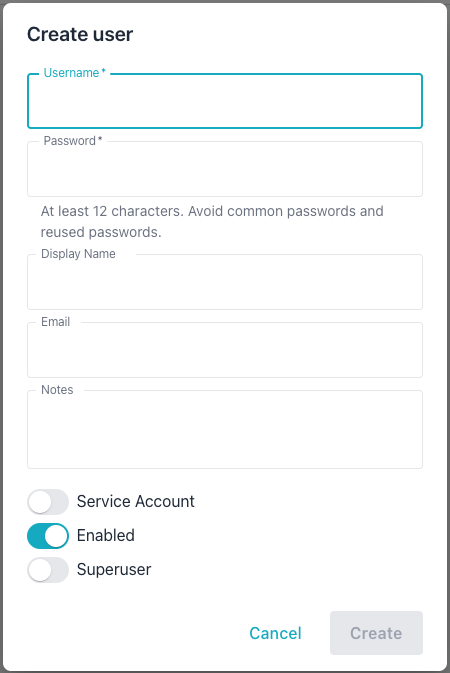
Use the fields on the Create user dialog to define the user; provide:
- the login name for the account in the
Usernamefield. - the password associated with the user in the
Passwordfield. - the name that will be displayed for the user in the
Display Namefield. - the email account associated with the user in the
Emailfield. - any notes relevant to the user account in the
Notesfield.
Toggles at the bottom of the dialog allow you to:
- indicate that the account is intended for programmatic access only by
setting the
Service Accounttoggle toon. EnableorDisablethe account; when disabled, the user cannot log in.- create a
Superuseraccount; setting theSuperusertoggle toonconveys privileges to add managed servers or users.
You can also use the command line to add a user. In the following example,
the -add-user flag starts interactive mode, prompting you for user details:
./bin/ai-dba-server -add-user
When prompted, provide the following:
- Username (required)
- Password (hidden input, with confirmation)
- User Email (optional)
- Annotation or note (optional)
Similarly, the -add-service-account flag creates a new service account in
interactive mode:
./bin/ai-dba-server -add-service-account
When prompted, provide the following:
- Username (required)
- Full account name (optional)
- Email address for the account (optional)
- Annotation or note (optional)
You can also provide required fields when you use the -add-user flag to
create a user in non-interactive mode. In the following example, the
-add-user command supplies the username, password, and a note in key/value
pairs:
./bin/ai-dba-server -add-user \
  -username alice \
  -password "SecurePassword123!" \
  -user-note "Alice Smith - Developer"
You can also create a service account in non-interactive mode; provide the
required fields and values with the -add-service-account flag. In the
following example, the -add-service-account command supplies the username,
full name, email, and a note in key/value pairs:
./bin/ai-dba-server -add-service-account \
  -username inventory-svc \
  -full-name "Inventory Service" \
  -email "inventory@example.com" \
  -user-note "Inventory management service account"
Reviewing a List of Accounts
The Workbench console and command line both provide ways to review existing user and service accounts.
You can review a list of user and service accounts in either the Workbench
console or at the command line. To review the list in the console, navigate to
the Users page in the Administration console:
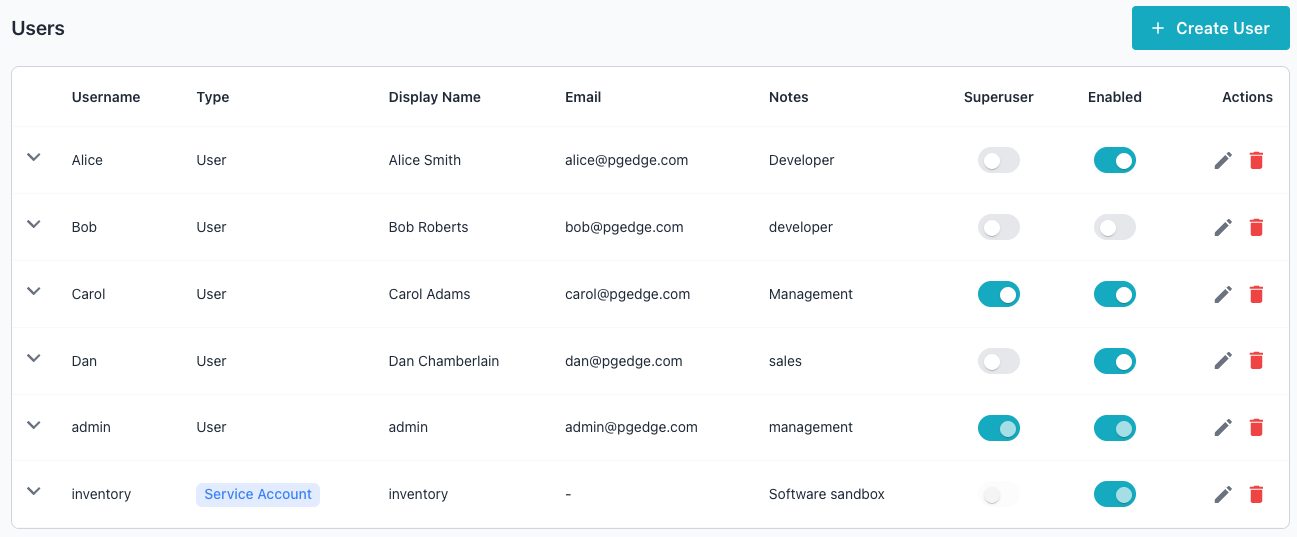
Use the arrow to the left of a Username to review detailed information about the privileges assigned to the user:
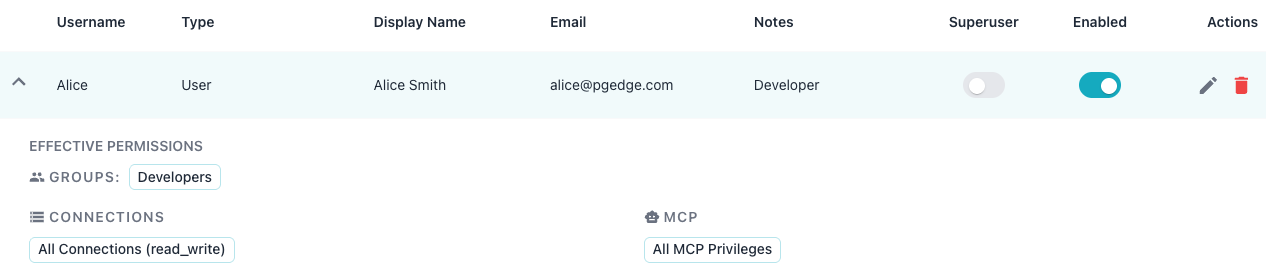
You can also use the -list-users command to display a list of user accounts
on the command line:
./bin/ai-dba-server -list-users
The user list includes all currently defined user and service accounts:
./bin/ai-dba-server -list-users
Auth store: /var/lib/ai-workbench/data/auth.db

Users:
=========================================================================================
Username             Created                   Last Login           Status     Notes
-----------------------------------------------------------------------------------------
Alice                2026-06-10 13:24          Never                Enabled    Developer
Bob                  2026-06-10 13:31          Never                DISABLED   developer
Carol                2026-06-10 13:32          Never                Enabled    Management
Dan                  2026-06-10 13:37          Never                Enabled    sales
admin                2026-06-09 11:59          2026-06-10 12:27     Enabled    management
inventory            2026-06-10 13:31          Never                Enabled    Software
=========================================================================================
Modifying an Account
The Workbench console and command line both support modifying account properties.
To update the details associated with an account in the console, navigate to
the Users page and select the edit icon (the pencil) at the far-right of the
account listing you wish to modify. The Edit user dialog opens, allowing you to
modify:
- the
Passwordassociated with the account. - the
Display Name. - the
Emailassociated with the account. - the
Notesassociated with the account. - if the account is
Enabled. - if the account has
Superuserprivileges.
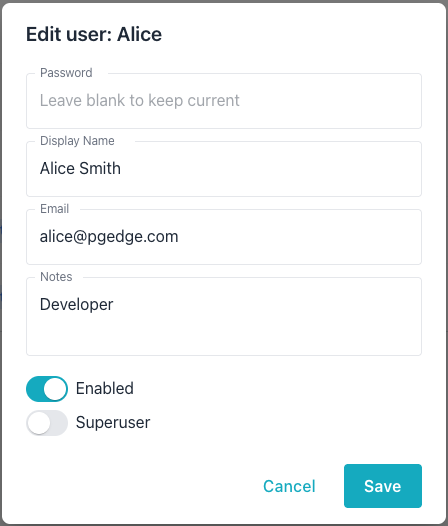
You can also modify these properties at the command line. In the following
example, the -update-user command starts an interactive session that
modifies an existing user account:
# Interactive update
./bin/ai-dba-server -update-user -username alice
To update an account programmatically, invoke the -update-user command with
keywords and the new information on the command line; for example:
# Update password from command line (less secure)
./bin/ai-dba-server -update-user \
  -username alice \
  -password "NewPassword456!"

# Update annotation only
./bin/ai-dba-server -update-user \
  -username alice \
  -user-note "Alice Smith - Senior Developer"
Similarly, use the -disable-user and -enable-user commands to control
whether an account is enabled or disabled:
# Disable a user account (prevents login)
./bin/ai-dba-server -disable-user -username charlie

# Re-enable a user account (also resets failed attempts)
./bin/ai-dba-server -enable-user -username charlie
Deleting an Account
You can use the Workbench console or the command line to delete a user or service account.
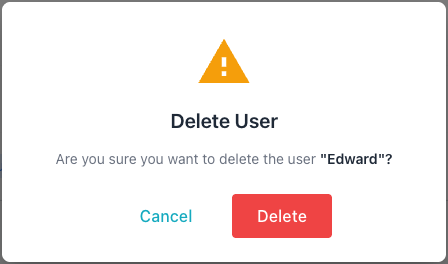
To use the Workbench console to delete a user account, navigate to the Users
page, and select the Delete icon (the garbage can) at the far right of an
account listing. When the popup opens, confirm that you wish to delete the
account by selecting Delete:
You can also delete a user or service account at the command line. In the
following example, the -delete-user flag removes a user account:
# Delete user (with confirmation prompt)
./bin/ai-dba-server -delete-user -username charlie
Managing Authentication Rate Limiting and Account Lockout
Rate limiting and account lockout behavior are controlled by authentication
settings in the server configuration file
(/etc/pgedge/ai-dba-server.yaml).
When a valid user name is provided for authentication, the server begins to
track failed login attempts and the time period in which those attempts are
made.
The configuration file manages the following authentication options:
http:
  auth:
    enabled: true
    # Rate limiting settings
    rate_limit_window_minutes: 15
    rate_limit_max_attempts: 10
    # Account lockout settings
    max_failed_attempts_before_lockout: 5  # 0 = disabled
    # API token restrictions
    # Superuser-owned tokens are exempt from this limit
    max_user_token_days: 90  # 0 = unlimited
The following properties control lockout behavior:
rate_limit_window_minutescontrols the time window in minutes during which failed login attempts are counted per IP address; the default is15.rate_limit_max_attemptscontrols the maximum number of failed login attempts allowed from a single IP address within the rate-limit window before that IP is blocked; the default is10.- The
max_failed_attempts_before_lockoutsetting controls the number of failed authentication attempts before locking an account; a value of0disables the property. max_user_token_dayscontrols the maximum lifetime in days for user-created tokens; a value of0allows you to use tokens with unlimited lifetime.
You can use the following command to re-enable a locked account and reset the number of failed login attempts:
# Re-enable a locked account (also resets failed attempts)
./bin/ai-dba-server -enable-user -username alice