Permission Management
The Permissions page of the Workbench console allows an administrator to
view and manage the privileges assigned to a group.
Hint
The Workbench assigns privileges to groups rather than to individual accounts; an account gains a privilege by joining a group that holds the privilege. For instructions on creating groups and managing their membership, see Group Management.
To open the Permissions page, navigate through the Settings icon to the
Administration console, and select Permissions from the navigation pane.
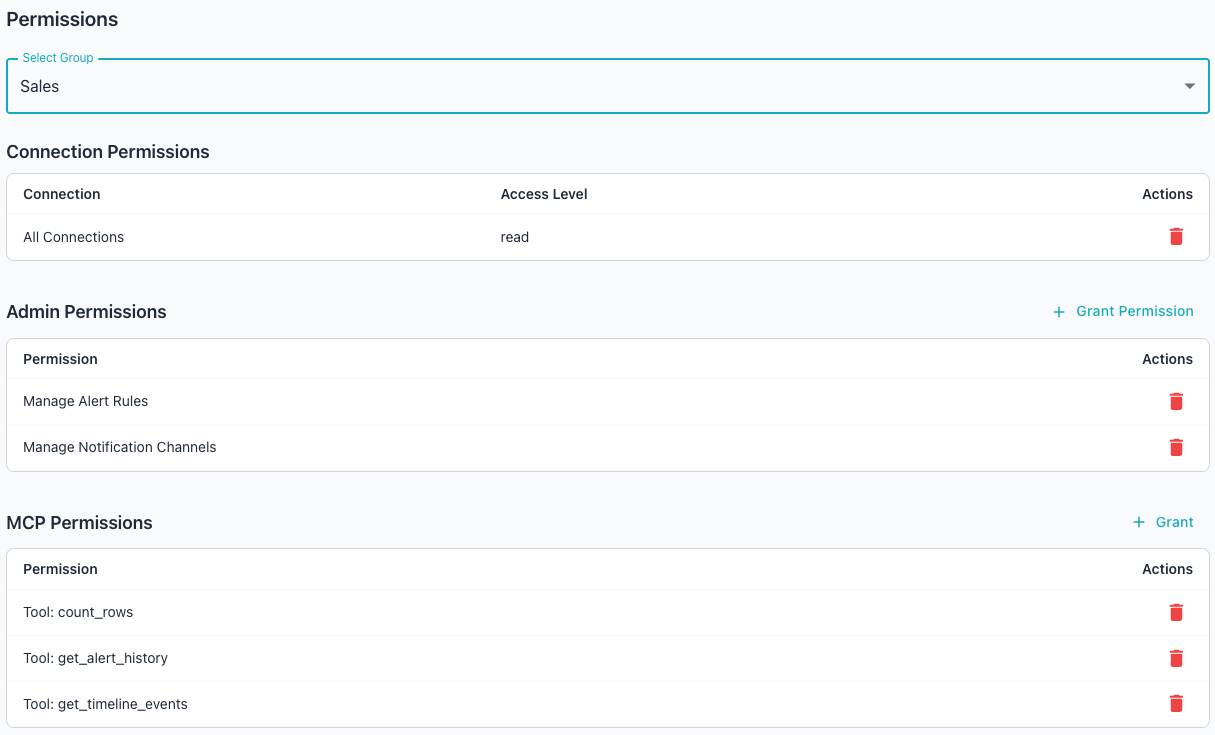
The page organizes a group's permissions in three sections:
- The
Connection Permissionssection specifies whether the group hasReadorRead/Writepermissions when it connects to a database connection (a DATABASE SERVER, added on the main Workbench console landing page). - The
Admin Permissionssection lists the administrative operations the selected group can perform. - The
MCP Permissionssection lists the MCP tools and resources the selected group can access.
Assigning or Revoking Permissions
Use the Select Group drop-down at the top of the page to select the group
whose permissions you wish to review or edit; once selected, the console loads
the selected group's current grants into each table below the drop-down.
Choose a different group at any time to switch the displayed permissions; the
tables refresh to match the new selection.
Connection Permissions
You can manage connection permissions in the Workbench console or at the command line.
The Connection Permissions section shows each connection the selected group
can authenticate with, and the access level the group holds for that
connection. Each connection in the table corresponds to a server defined in
the DATABASE SERVERS section of the Workbench; for information about adding
server definitions, see Using the Workbench.
The following table lists the access levels available for each connection:
| Access Level | Description |
|---|---|
read |
Allows read-only operations; the group inspects data and metadata without changing them. |
read_write |
Allows both read and write operations against the connection. |
To add a connection/access level pair, select the + Grant icon across from
the Connection Permissions heading.
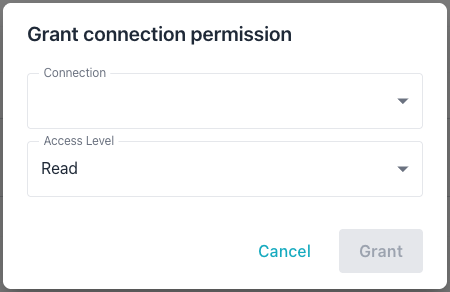
Select:
- the name of a monitored database with the
Connectiondrop-down. SelectAll Connectionsto give the group access to all monitored connections at the specified access level. - the
Access Levelto apply to the selected connections; chooseReadorRead/Write.
Once access is granted, the new connection appears on a new row in the
Connection Permissions section.
To modify the access level for a connection, delete the connection permission and reassign the connection to the group with the new level.
To revoke a connection grant, select the red Delete icon (the garbage can)
in the Actions column for that row. The console removes the connection access
immediately, and the group loses the listed access to the connection.
You can also grant a connection at the command line with the
-grant-connection command:
- Include the
-groupflag to name the group that receives the access. - Include the
-connectionflag to identify the connection by its ID. - Include the
-access-levelflag to set the level toreadorread_write; the command defaults toreadwhen you omit the flag.
In the following example, the -grant-connection command grants the
dba-team group read_write access to connection 3:
./bin/ai-dba-server -grant-connection -group dba-team -connection 3 \
    -access-level read_write
The command confirms the grant:
Granted read_write access to connection 3 for group 'dba-team'
You can revoke a connection at the command line with the
-revoke-connection command:
- Include the
-groupflag to name the group that loses the access. - Include the
-connectionflag to identify the connection by its ID.
In the following example, the -revoke-connection command revokes the
dba-team group's access to connection 3:
./bin/ai-dba-server -revoke-connection -group dba-team -connection 3
The command confirms the revocation:
Revoked access to connection 3 from group 'dba-team'
Admin Permissions
The Admin Permissions section shows the administrative permissions granted
to the selected group. The following table lists the administrative
permissions available:
| Permission | Description |
|---|---|
manage_connections |
Allows creating, editing, and deleting monitored database connections. |
manage_groups |
Allows creating, editing, and deleting groups and their memberships. |
manage_permissions |
Allows granting and revoking privileges on groups. |
manage_users |
Allows creating, editing, and deleting user accounts and service accounts. |
manage_token_scopes |
Allows viewing and modifying token scope restrictions. |
manage_blackouts |
Allows creating, editing, and deleting maintenance blackout windows. |
manage_probes |
Allows configuring probe frequency, retention, and enabled state. |
manage_alert_rules |
Allows configuring alert rule defaults and per-connection overrides. |
manage_notification_channels |
Allows creating, editing, and deleting alert notification channels. |
store_system_memory |
Allows storing and deleting system-scoped chat memories visible to all users. |
To grant an administrative permission, select the + Grant Permission icon
across from the Admin Permissions heading. When the Grant admin permission
popup opens:
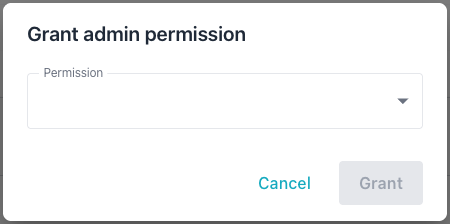
Use the Permission drop-down to select the permission you wish to grant to
the group. Once granted, the new permission is displayed on a new row in the
Admin Permissions section.

To revoke a permission, select the Delete icon across from the permission
name. The console revokes the permission from the group immediately.
MCP
Permissions
You can manage MCP permissions in the Workbench console or at the command line.
The MCP Permissions section displays the MCP tools and resources that can be
accessed by the selected group.
The following table lists the MCP tools and resources available for a group,
organized by category; the All MCP Privileges wildcard grants access to
every tool in the table:
| Group | Tool | Description |
|---|---|---|
| Monitored Database | query_database |
Executes SQL queries against a monitored database. |
| Monitored Database | get_schema_info |
Retrieves table and column information from a database. |
| Monitored Database | execute_explain |
Runs EXPLAIN or EXPLAIN ANALYZE on a query. |
| Monitored Database | similarity_search |
Performs vector similarity search using pgvector. |
| Monitored Database | count_rows |
Counts rows in a specified table. |
| Monitored Database | test_query |
Validates SQL query correctness without executing the query. |
| Datastore | list_probes |
Lists available metrics probes in the datastore. |
| Datastore | describe_probe |
Retrieves column details for a specific metrics probe. |
| Datastore | query_metrics |
Queries historical metrics with time-based aggregation. |
| Datastore | list_connections |
Lists available monitored database connections. |
| Datastore | query_datastore |
Executes read-only SQL queries against the datastore. |
| Alert | get_alert_history |
Queries alerts for monitored connections. |
| Alert | get_alert_rules |
Queries alert rules and their effective thresholds. |
| Alert | get_metric_baselines |
Queries statistical baselines for anomaly detection. |
| Alert | get_blackouts |
Queries blackout periods and recurring schedules for monitored connections. |
| Alert | get_timeline_events |
Queries the unified incident-investigation timeline of configuration changes, restarts, extension changes, alerts, and blackouts. |
| Memory | store_memory |
Stores a persistent memory with a category, scope, and optional pinned flag. |
| Memory | recall_memories |
Searches stored memories using semantic similarity; pinned memories are always included. |
| Memory | delete_memory |
Deletes a stored memory by its ID; only the owning user can delete a memory. |
| Utility | generate_embedding |
Generates text embeddings from input text. |
| Utility | search_knowledgebase |
Searches the pgEdge documentation knowledge base. |
| Utility | read_resource |
Reads MCP resources via the tool interface for backward compatibility with older clients. |
To grant an MCP permission, select the + Grant icon across from the MCP
Permissions heading. When the Grant MCP permission popup opens:
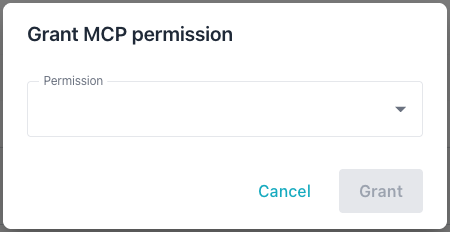
Use the Permission drop-down to select the resource or tool you wish to
allow the group to access. Once granted, the selected tool or resource appears
on a new row in the MCP Permissions section.
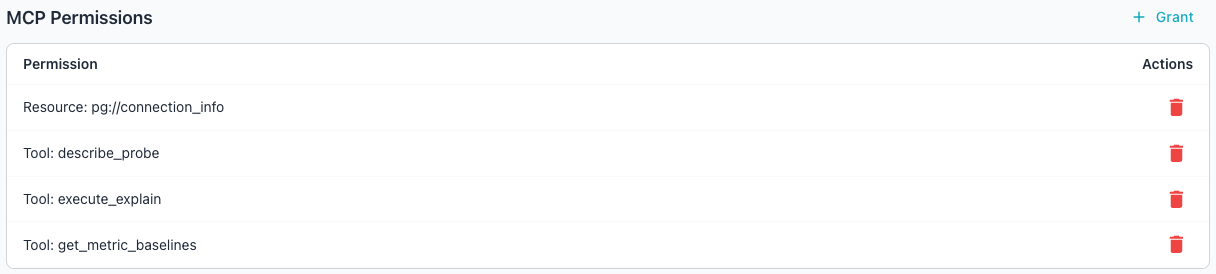
To revoke an MCP privilege, select the Delete icon (the garbage can) across
from the tool or resource name. The console removes the privilege from the
group immediately, and the group loses access to the listed tool.
Note
Granting access to All MCP Privileges overrides line item tool and
resource grants.
You can also grant an MCP privilege at the command line with the
-grant-privilege command:
- Include the
-groupflag to name the group that receives the privilege. - Include the
-privilegeflag to name the privilege by its identifier.
In the following example, the -grant-privilege command grants the
query_database privilege to the dba-team group:
./bin/ai-dba-server -grant-privilege -group dba-team -privilege query_database
The command confirms the grant:
Granted privilege 'query_database' to group 'dba-team'
You can revoke an MCP privilege at the command line with the
-revoke-privilege command:
- Include the
-groupflag to name the group that loses the privilege. - Include the
-privilegeflag to name the privilege by its identifier.
In the following example, the -revoke-privilege command revokes the
query_database privilege from the dba-team group:
./bin/ai-dba-server -revoke-privilege -group dba-team -privilege query_database
The command confirms the revocation:
Revoked privilege 'query_database' from group 'dba-team'
To review the privileges available to grant, use the -list-privileges
command. In the following example, the -list-privileges command lists
every registered MCP privilege:
./bin/ai-dba-server -list-privileges
The command prints each privilege with its ID, type, identifier, and description:
MCP Privileges:
==========================================================================================
ID     Type       Identifier                     Description
------------------------------------------------------------------------------------------
1      tool       query_database                 Execute read-only SQL queries against ...
2      tool       get_schema_info                Retrieve database schema information (...
3      resource   pg://connection_info           Current database connection information...
==========================================================================================
To review the privileges already assigned to a group, use the
-show-group-privileges command described in
Group Management.